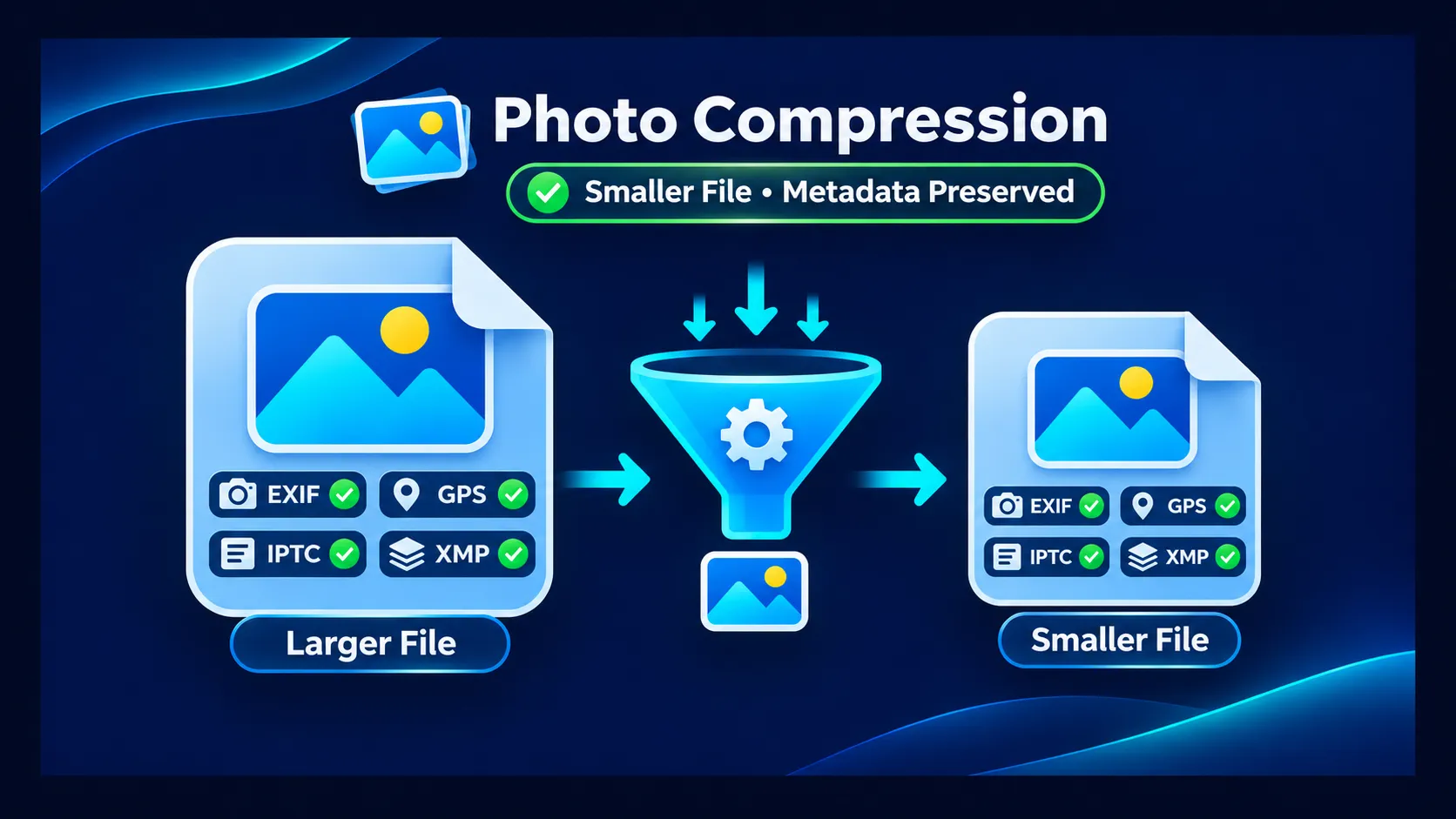
How to Compress Images Without Losing EXIF, GPS, IPTC or XMP Metadata
Compressing an image reduces its file size — but depending on the tool you use, it may also silently strip the metadata embedded inside the file. GPS coordinates, copyright information, creator credits, camera settings, and other fields stored in the image can disappear during compression without any warning.
If you need smaller files but also need to keep that embedded data intact, the question is not just "how do I compress this image?" but "how do I compress it without losing the information stored inside it?"
This guide explains why compression can affect metadata, which types of metadata are at risk, and how to compress images while preserving the fields that matter — with a verification workflow to confirm the result.
What Happens to Metadata When an Image Is Compressed
An image file contains two distinct kinds of data:
- Pixel data — the actual visual content (colors, shapes, textures) that makes up what you see
- Embedded metadata — structured information stored alongside the pixel data, including camera settings (EXIF), GPS coordinates, copyright and creator fields (IPTC), licensing URLs, descriptions, and extensible fields (XMP)
When you compress an image, the compression algorithm operates on the pixel data. It re-encodes the visual content to produce a smaller file. The metadata, which is stored in separate sections of the file, is not part of the compression algorithm itself.
The problem is that some compression tools do not handle metadata at all. They decode the pixels, re-encode them at a lower quality or with better optimization, and write a new file — discarding the metadata sections entirely. Some tools do this deliberately to save a few extra kilobytes. Others simply never read the metadata in the first place.
The result can be a smaller file with some or all of its original EXIF, GPS, copyright, creator, or other metadata missing.
Types of Metadata You May Want to Preserve
Before compressing, it helps to know what embedded metadata your images contain and which fields matter for your workflow:
EXIF (Exchangeable Image File Format)
Camera model, lens, shutter speed, aperture, ISO, date and time the photo was taken, orientation, and — critically for many users — GPS coordinates (latitude and longitude). EXIF is the most common metadata standard in photographs.
IPTC (International Press Telecommunications Council)
Creator name, credit line, copyright notice, captions, keywords, and contact information. IPTC fields are widely used in journalism, stock photography, and professional asset management.
XMP (Extensible Metadata Platform)
An extensible framework that can store descriptions, rights information, licensing URLs, and other extensible metadata. XMP is used by Adobe products and supports a wide range of custom fields.
GPS Coordinates
Latitude and longitude embedded in the EXIF section. GPS data is valuable for location-aware workflows, travel photography cataloging, real estate documentation, and field work — but can also be a privacy concern when publishing personal images.
For a deeper explanation of these metadata types, see Understanding Image Metadata: EXIF, IPTC, XMP & GPS Data. To inspect what metadata your images currently contain, use the Metadata Viewer.
Why Some Compressors Strip Metadata
Compression tools strip metadata for several reasons:
- File size reduction — metadata can add several kilobytes to a file. Tools focused purely on minimizing size may remove it to save those bytes.
- Privacy — some tools strip GPS and camera information by default as a privacy measure, particularly for images intended for web publishing.
- Implementation simplicity — low-level compression libraries like libjpeg process only the pixel data stream. Unless the developer explicitly handles the metadata markers (APP1 for EXIF/XMP, APP13 for IPTC), the metadata is simply not carried over to the output file.
- Format conversion side effects — when an image is converted to a different format during compression, metadata compatibility can change. Not every format supports every metadata standard in the same way.
This is why verifying your metadata after compression is important — the behavior varies from tool to tool.
How Image Formats Handle Metadata During Compression
JPEG
JPEG is the most common format for photographs. JPEG compression is lossy at the pixel level — the visual data is re-encoded using a quality parameter, and some detail is permanently discarded. However, EXIF, IPTC, and XMP metadata are stored in separate marker segments (APP1, APP13) that are structurally independent of the pixel data. A well-designed compressor can re-encode the pixels while copying the metadata markers intact.
Important: even when metadata is preserved, the pixel data in a re-compressed JPEG is not identical to the original. The image may look the same at reasonable quality levels, but it has been re-encoded.
PNG
PNG compression is lossless — no pixel data is discarded. PNG optimizers (like OxiPNG) reorganize and recompress the pixel data more efficiently without changing the visual content. PNG supports metadata through tEXt, iTXt, and zTXt chunks, and the newer eXIf chunk for EXIF data. XMP is typically stored in an iTXt chunk. Whether a PNG compressor preserves these chunks depends on the implementation.
WebP
WebP supports EXIF and XMP metadata through dedicated chunks in its RIFF container structure. IPTC is not part of the WebP specification. When compressing a WebP file, a metadata-aware tool should preserve the EXIF and XMP chunks. When converting from JPEG to WebP, EXIF and XMP can be carried over, but IPTC fields may not transfer to the WebP format.
HEIC and TIFF
HEIC and TIFF files can contain rich metadata. However, many web-oriented compression tools convert these to JPEG during processing, which may affect metadata depending on how the conversion is handled.
How to Compress Images While Preserving Metadata
Here is a practical workflow for compressing images without losing important metadata:
Step 1 — Inspect the Original
Before compressing, open your image in a metadata viewer and note the important fields — GPS coordinates, copyright, creator, camera data, and any custom fields you need to keep.
The Metadata Viewer shows EXIF, IPTC, XMP, and GPS data in any supported image. Take note of the fields that matter for your workflow.
Step 2 — Compress with Metadata Preservation Enabled
Use a compressor that explicitly supports metadata preservation. The Image Compressor on GeoImageTagger includes a metadata preservation toggle (enabled by default) that is designed to preserve supported EXIF, GPS, IPTC, and XMP metadata during compression.
The tool supports JPG, PNG, WebP, HEIC, and TIFF input. HEIC and TIFF files are converted to JPEG for compression output, which may affect metadata depending on how the conversion is handled. Compression is processed in your browser via WebAssembly (using MozJPEG for JPEG, OxiPNG for PNG, and libwebp for WebP), and the tool provides an adjustable quality slider (1–100) along with presets for different use cases.
You can compress up to 10 images per batch, with a maximum of 20 MB per file. Results can be downloaded individually or as a ZIP archive.
Step 3 — Verify the Result
After compression, re-open the compressed file in the Metadata Viewer and compare the important fields against your original notes. Confirm that GPS coordinates, copyright, creator, and other critical fields are intact.
The Image Compressor includes built-in metadata verification that indicates whether original fields were confirmed in the output — but an independent check with the Metadata Viewer provides additional confidence.
Step 4 — Correct If Needed
If any metadata was lost or altered during compression, you can restore it using the Metadata Editor to write or update specific fields in the compressed file.
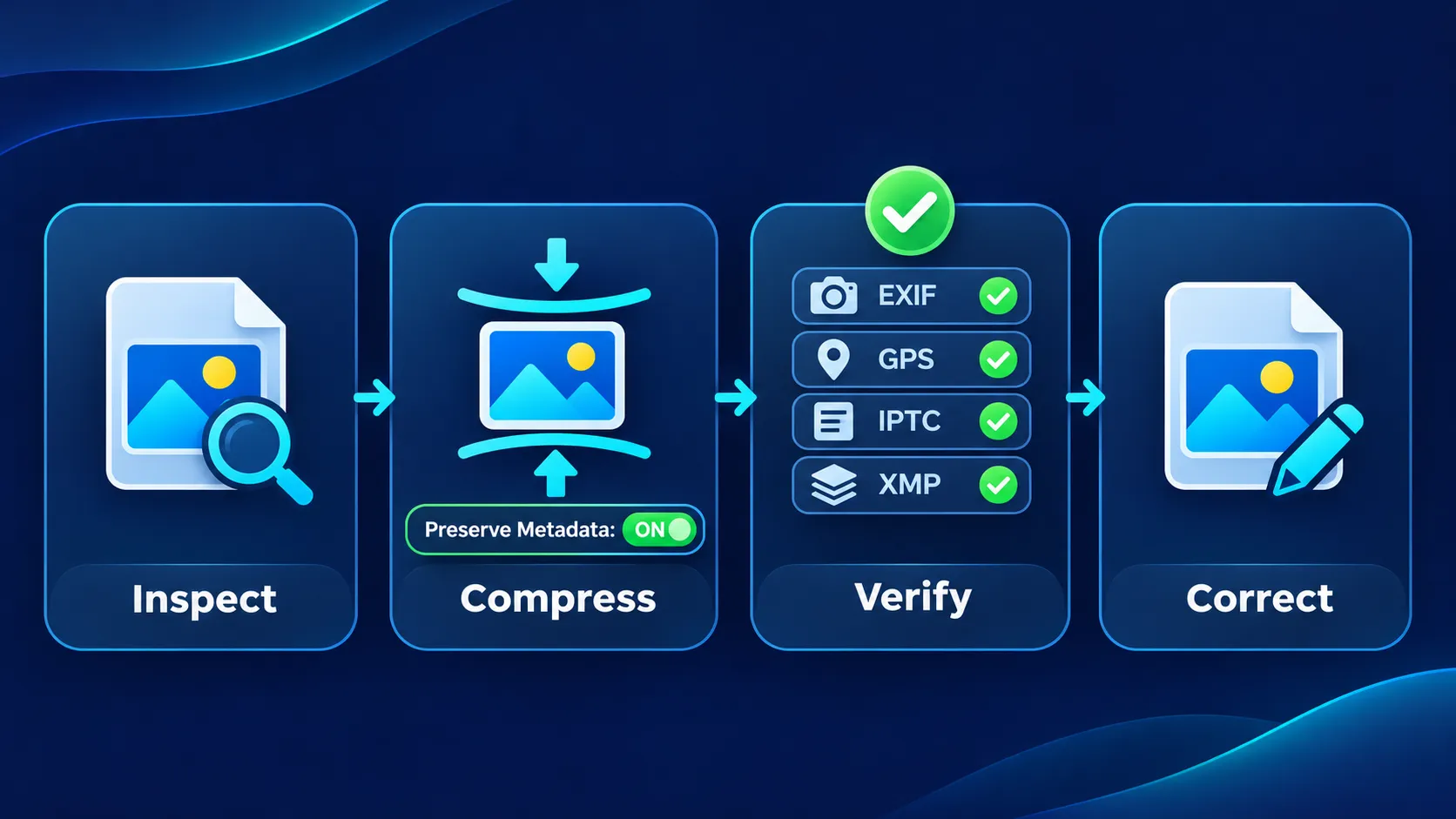 Step-by-step workflow diagram showing inspect metadata, compress with preservation, verify result, and correct if needed
Quality vs. File Size: What to Expect
Compression involves a trade-off between file size and visual quality. A lower quality setting produces a smaller file but with more visible compression artifacts. A higher quality setting preserves more visual detail but results in a larger file.
There is no universal ideal JPEG quality setting. The best value depends on the image content, dimensions, intended use, and acceptable visual degradation. Adjust quality while visually inspecting the result and comparing file size. The GeoImageTagger Image Compressor offers presets — High Quality (85), Balanced (65), and Aggressive (40) — as starting points, but the right setting varies per image.
For PNG images, compression is lossless — the pixel data is identical before and after. PNG optimization reduces file size by reorganizing the internal data structure more efficiently, with no visual quality trade-off.
The actual file size reduction depends on the specific image: photographs with fine detail, noise, or complex textures compress differently from graphics with flat colors and sharp edges. Avoid assuming a fixed compression ratio for all images.
When to Preserve Metadata
Preserving metadata during compression is important when:
- Copyright and attribution matter — professional photographers, agencies, and stock image providers need copyright notices, creator credits, and licensing URLs to travel with the image file
- Location data is needed — real estate, travel, field work, and asset management workflows may depend on GPS coordinates remaining in the file
- Archival and cataloging — organizations that index and search large image collections by metadata need those fields to survive compression
- Downstream workflows — images shared between systems, teams, or platforms may rely on embedded metadata for identification and processing
When to Remove Metadata
In some cases, you may deliberately want to strip metadata before publishing:
- Privacy — personal photos shared online may contain GPS coordinates revealing your home, workplace, or other sensitive locations. Camera serial numbers and other device information can also be identifying.
- Minimizing file size — for web assets where every kilobyte matters and metadata is not needed, stripping it reduces the total file size.
- Security — some metadata fields can leak information about software versions, editing history, or internal workflow details.
If your goal is metadata removal rather than preservation, the EXIF Remover handles selective or complete metadata removal without re-encoding the image pixels — meaning no quality loss from the removal process itself.
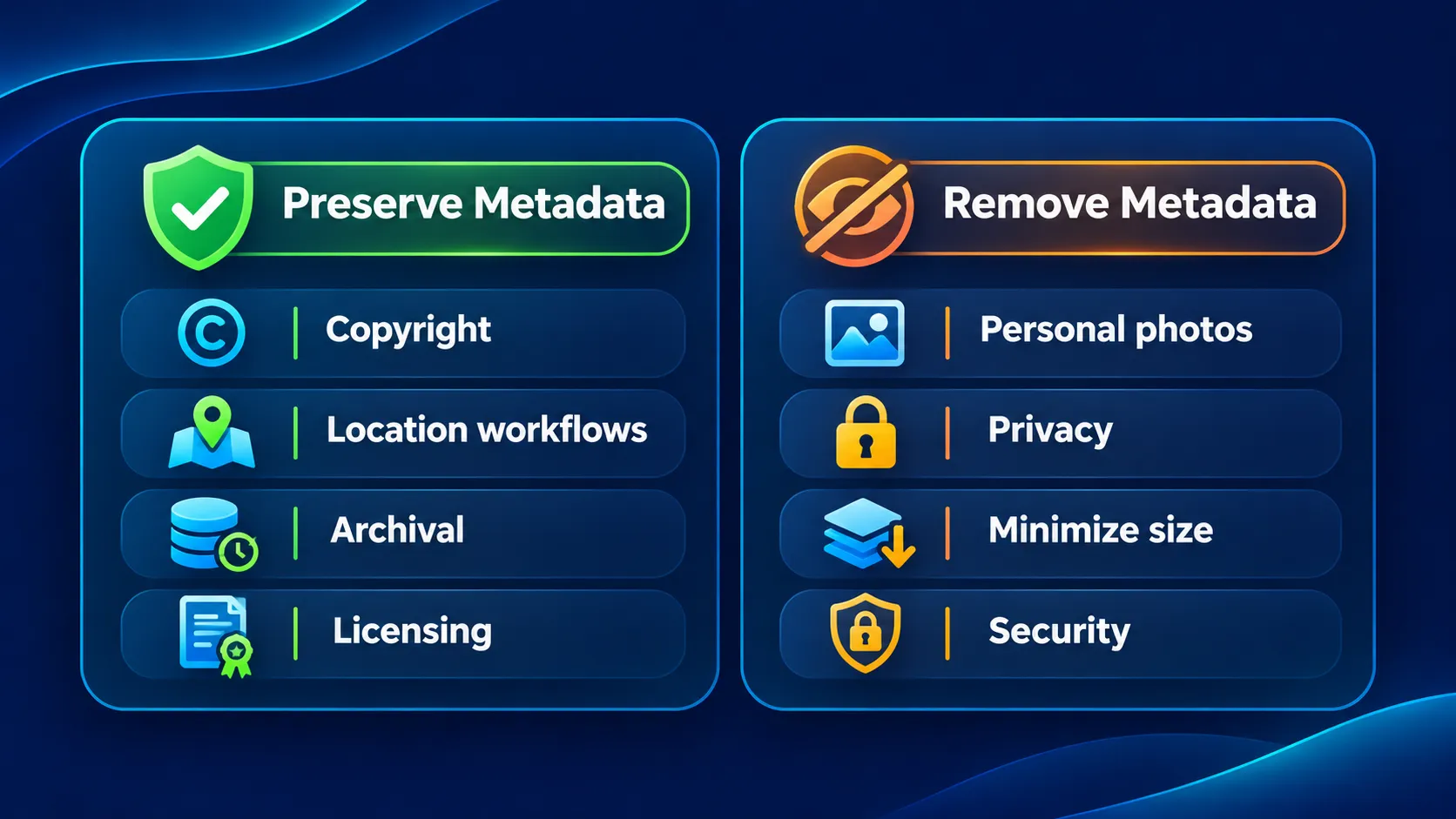 Comparison diagram showing when to preserve image metadata versus when to remove it for privacy
Compression vs. Format Conversion
Compression and format conversion are related but distinct operations. Compressing an image reduces the file size within the same format (or the tool's default output format). Converting an image changes it from one format to another — for example, JPEG to WebP or PNG to JPEG.
Format conversion can affect metadata compatibility. Not every metadata standard is supported equally across all formats. For example, IPTC fields are well-supported in JPEG but not part of the WebP specification. When converting between formats, verify that the metadata fields you need are supported by the target format.
For format conversion, the Image Converter supports JPG, PNG, and WebP output with a metadata preservation option. For broader image optimization guidance — including sizing, format selection, and performance — see How to Optimize Images for Website Speed and SEO.
Does Preserving Metadata Improve SEO?
Embedded image metadata (EXIF, IPTC, XMP) is not a confirmed general Google ranking factor. Adding keywords to metadata fields will not directly improve your search rankings.
Google does read specific IPTC fields — Creator, Credit Line, Copyright Notice, Web Statement of Rights, and Licensor URL — to support licensing features in Google Images. When the required licensing properties are supplied, images may become eligible for a Licensable badge. But this is a licensing and attribution feature, not a ranking signal.
Preserving metadata is valuable for copyright protection, professional asset management, creator attribution, and licensing workflows. For image SEO, focus on alt text, filenames, page context, and crawlability — the page-level signals covered in Image Tagging for SEO.
Frequently Asked Questions
Does compressing a photo remove EXIF data?
It depends on the tool. Some compressors strip EXIF data by default. Compressors designed to preserve metadata — like the Image Compressor — retain EXIF fields including GPS, camera settings, and timestamps during compression.
Does image compression remove GPS coordinates?
GPS coordinates are stored in the EXIF section of the image file. If the compressor strips EXIF data, GPS is lost. If it preserves EXIF, GPS coordinates should remain intact. Always verify after compression.
Can I reduce JPEG file size without deleting EXIF metadata?
Yes. JPEG compression operates on the pixel data, which is stored separately from the EXIF metadata markers. A metadata-aware compressor can re-encode the pixels while copying the EXIF markers to the output file.
Can IPTC copyright information survive image compression?
Yes, if the compressor handles IPTC markers (stored in the APP13 segment of JPEG files). Not all tools do — verify by inspecting the compressed file with a metadata viewer.
Does WebP preserve EXIF or XMP metadata?
The WebP format supports EXIF and XMP metadata through dedicated chunks in its RIFF container. IPTC is not part of the WebP specification. When converting from JPEG to WebP, EXIF and XMP can be preserved, but IPTC fields may not carry over.
How can I check whether metadata survived compression?
Open the compressed file in a metadata inspection tool — such as the Metadata Viewer — and compare the fields against the original. Look specifically for GPS, copyright, creator, and any fields critical to your workflow.
Should I keep GPS metadata in compressed images?
That depends on the image's purpose. For professional workflows, real estate, travel cataloging, or asset management, GPS data is useful. For personal photos shared publicly, GPS can reveal sensitive locations and should be removed. Use the EXIF Remover when privacy is a concern.
Does preserving image metadata improve SEO?
Embedded metadata is not a general Google ranking factor. Its value lies in copyright attribution, licensing features, and asset management — not in search ranking. For image SEO, focus on alt text, filenames, and page context.
Conclusion
Image compression and metadata preservation are not mutually exclusive — but they require the right tool and a verification step. Some compressors strip metadata silently, so the safest approach is to use a compressor with explicit metadata preservation, then verify the result independently.
The practical workflow is straightforward: inspect your metadata before compression, compress with preservation enabled, verify afterward, and correct if needed. This ensures smaller files without losing the embedded information that matters for your workflow.
Explore all image tools — including the Image Compressor, Metadata Viewer, and Metadata Editor — at GeoImageTagger.
← Back to Blog