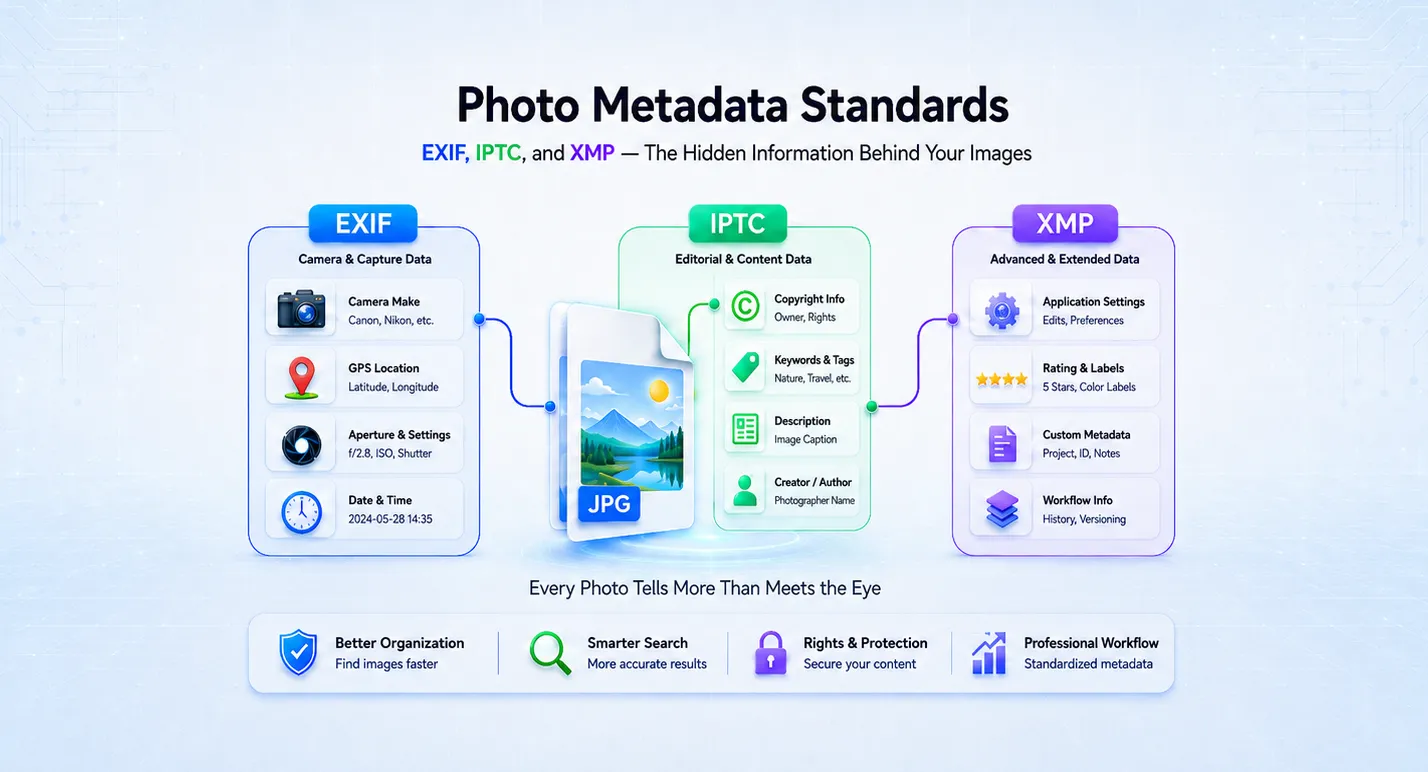
How to Read and Edit Image Metadata: EXIF, IPTC, and XMP Explained
Every digital photo carries hidden data beyond the visible pixels. This data — called metadata — can include the GPS coordinates where the photo was taken, the camera and lens used, copyright ownership, descriptive keywords, and dozens of other fields.
Understanding what metadata your images contain, how to inspect it, and how to modify it is essential whether you are a photographer protecting your work, an SEO professional optimizing image assets, a developer building media pipelines, or simply someone concerned about privacy.
This guide explains the three main metadata standards — EXIF, IPTC, and XMP — what each one stores, how to view metadata in any image, and how to edit specific fields without affecting image quality.
What Is Image Metadata?
Image metadata is structured information embedded inside an image file alongside the pixel data. When you take a photo with a smartphone or camera, the device automatically writes technical details into the file: camera settings, timestamp, GPS location, and more. Additional metadata — like copyright, descriptions, and keywords — can be added manually or through software.
Three standards govern how this metadata is stored:
EXIF (Exchangeable Image File Format)
EXIF is the most widely recognized metadata standard. It was created by the Japan Electronic Industries Development Association and is automatically written by cameras, smartphones, and drones.
EXIF data typically includes:
- Camera information — make, model, lens, serial number
- Exposure settings — aperture (f-stop), shutter speed, ISO, focal length
- GPS coordinates — latitude, longitude, altitude (if location services are enabled)
- Timestamps — date taken, date digitized, date modified
- Image properties — width, height, orientation, color space
- Software — editing software used (Photoshop, Lightroom, etc.)
EXIF data is written in JPEG files within the APP1 marker segment. It is primarily technical and camera-generated.
IPTC (International Press Telecommunications Council)
IPTC metadata was designed for the news and media industry to standardize how editorial information is embedded in images. Unlike EXIF, IPTC fields are typically added manually by photographers, editors, or content managers.
IPTC data typically includes:
- Headline — a short summary of the image content
- Caption — a detailed description for editorial use
- Keywords — comma-separated tags for cataloging and search
- Copyright — ownership and licensing information
- Creator — the photographer or content creator
- Location — city, state/province, country (editorial location, not GPS)
Google reads IPTC metadata for image attribution in Google Images. When IPTC copyright and creator fields are present, Google can display "Image may be subject to copyright" labels and attribution information.
XMP (Extensible Metadata Platform)
XMP was developed by Adobe as a flexible, extensible metadata framework. It can store everything EXIF and IPTC store, plus additional fields:
- Title and description — content information for CMS platforms
- Subject/keywords — tags for search and organization
- Creator tool — which software created or last modified the file
- Rating and labels — organizational metadata (1–5 star ratings, color labels)
- Rights and usage terms — licensing and usage restrictions
- Content credentials — provenance data for AI-generated or AI-edited content
XMP is stored as embedded XML and can exist in JPEG, PNG, WebP, TIFF, and many other formats. It is increasingly important for content authenticity and provenance tracking.
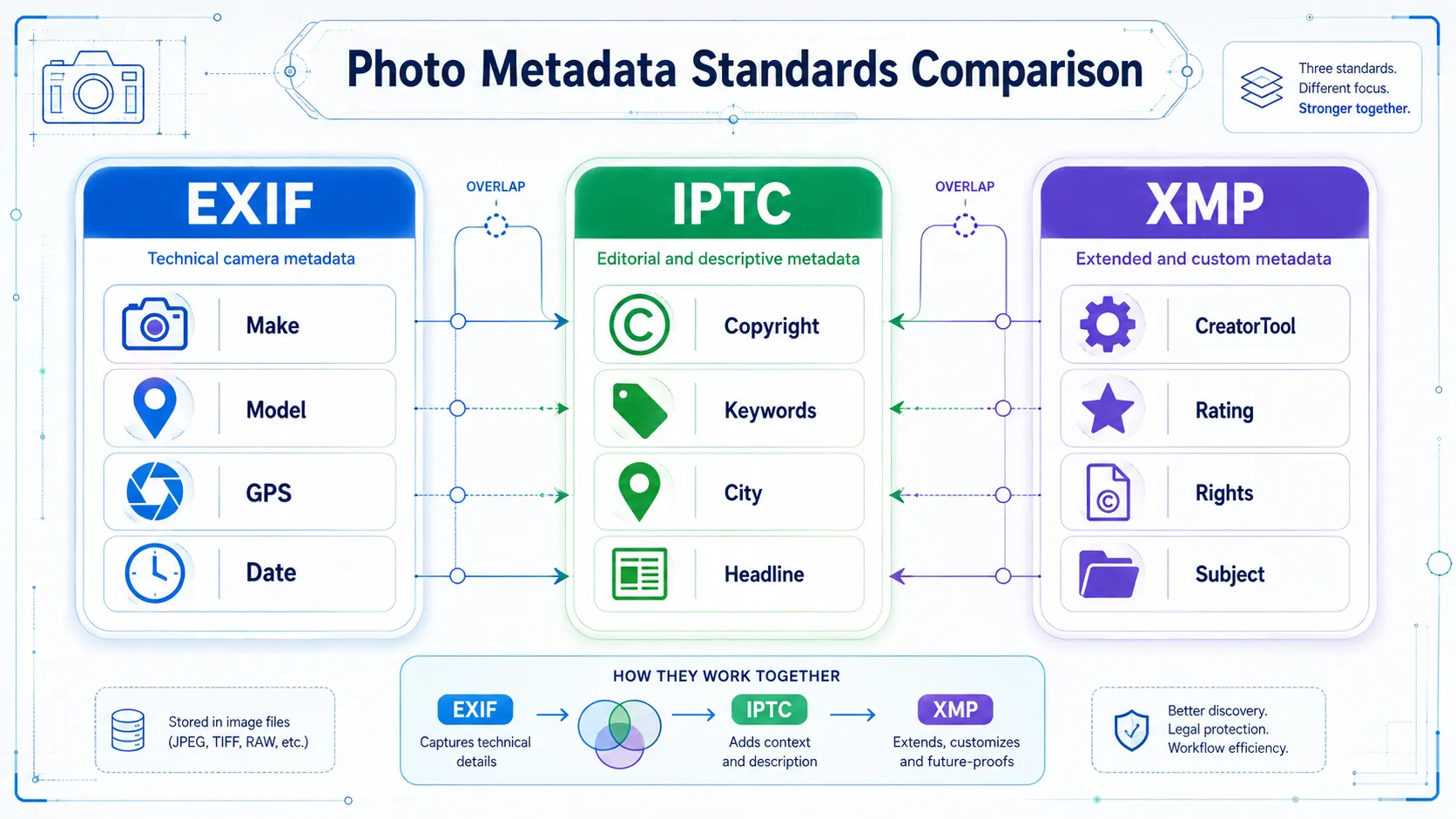 Three-column comparison showing EXIF metadata fields like camera and GPS on the left, IPTC fields like copyright and keywords in the center, and XMP fields like creator tool and ratings on the right
How to View Image Metadata
Online: Using a Metadata Viewer
The fastest way to inspect metadata is with an online viewer. The Metadata Viewer on GeoImageTagger lets you upload any image and instantly see all embedded metadata — organized by category.
What it shows:
- GPS location plotted on an interactive map with coordinates
- Camera and exposure — make, model, aperture, shutter speed, ISO, focal length
- Tags and keywords — IPTC keywords, XMP tags, DocumentName fields
- Descriptions and captions — ImageDescription, alt text, captions used by search engines
- Full raw JSON — every embedded field, exportable with one click
The viewer supports JPG, PNG, WebP, HEIC (iPhone), and TIFF files. All processing happens in your browser — your images are never uploaded to any server.
If your main goal is to confirm whether a particular photo has embedded GPS coordinates, follow our step-by-step guide to checking whether a photo is geotagged.
Command Line: Using ExifTool
For developers and power users, ExifTool is the standard command-line utility for reading and writing metadata:
# View all metadata in a file
exiftool photo.jpg

# View only GPS data
exiftool -GPS* photo.jpg

# View only IPTC data
exiftool -IPTC:all photo.jpg

# Export metadata as JSON
exiftool -json photo.jpg > metadata.json
In Desktop Software
Most photo editing software includes metadata viewers:
- Adobe Lightroom — Library module → Metadata panel
- Adobe Photoshop — File → File Info (shows EXIF, IPTC, and XMP)
- Windows — Right-click → Properties → Details tab
- macOS — Preview → Tools → Show Inspector → EXIF tab
How to Edit Image Metadata
Online: Using a Metadata Editor
The Metadata Editor on GeoImageTagger provides a notepad-style editing interface where you can modify any metadata field directly in your browser.
Editable fields are organized into sections:
- Content — ImageDescription, Title, Keywords/Tags, DocumentName, UserComment
- Location — GPS Latitude, Longitude, Altitude (decimal format)
- Camera and Device — Make, Model, Lens Model
- Exposure Settings — ISO, Aperture, Shutter Speed, Focal Length
- Date and Time — DateTimeOriginal, DateDigitized, DateModified
- Author and Copyright — Artist, Copyright, Creator, Usage Terms
- IPTC — Headline, City, State/Province, Country
- XMP — CreatorTool, Rating, Label
A critical feature of the editor: only metadata bytes are modified — your image pixels remain untouched. There is no re-encoding, no compression, and no quality loss. The editor also supports batch processing — upload up to 5 images and apply the same metadata changes to all of them.
After editing, you can download files individually or as a ZIP archive. Anonymous users get 20 free edits per day, registered users get 30, and Pro users get 50.
Command Line: Using ExifTool
ExifTool can also write metadata:
# Set image description
exiftool -ImageDescription="Sunset over the Eiffel Tower" photo.jpg

# Set GPS coordinates
exiftool -GPSLatitude=48.8584 -GPSLongitude=2.2945 -GPSLatitudeRef=N -GPSLongitudeRef=E photo.jpg

# Set IPTC copyright and keywords
exiftool -IPTC:Copyright="© 2026 Jane Smith" -IPTC:Keywords="paris,eiffel tower,sunset" photo.jpg

# Batch edit: set copyright on all JPEGs in a folder
exiftool -IPTC:Copyright="© 2026 Jane Smith" *.jpg
In Python (Pillow / piexif)
For automated workflows:
import piexif

# Load existing EXIF data
exif_dict = piexif.load("photo.jpg")

# Modify description
exif_dict["0th"][piexif.ImageIFD.ImageDescription] = b"Mountain landscape"

# Write updated EXIF back
exif_bytes = piexif.dump(exif_dict)
piexif.insert(exif_bytes, "photo.jpg")
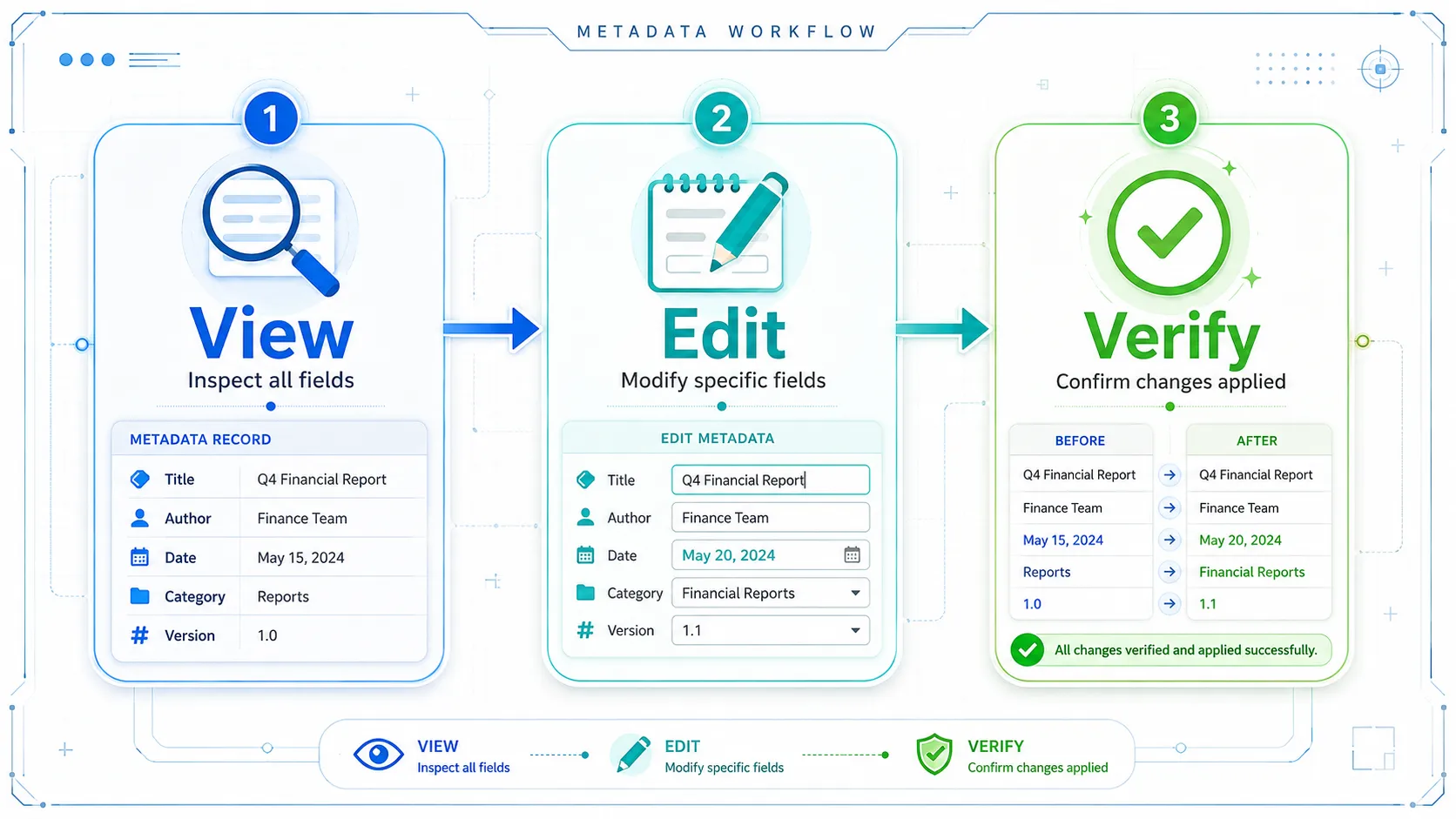 Three-step workflow diagram showing view metadata with magnifying glass then edit metadata with pencil icon then verify changes with checkmark in a horizontal flow
Common Use Cases for Metadata Editing
Adding Copyright Information
Photographers should embed copyright and creator information in every published image. This serves as a machine-readable ownership record that persists even if the image is downloaded and re-shared. Google reads IPTC copyright data and can display attribution labels in Google Images.
Key fields to set: Copyright, Artist, Creator, Rights/Usage Terms, IPTC:Headline.
Geotagging Photos for Local SEO
Adding GPS coordinates to images used on local business websites can reinforce geographic relevance. This is especially valuable for service-area businesses, real estate listings, and location-based content. The main GeoImageTagger tool automates this with AI-powered geotagging.
Key fields to set: GPSLatitude, GPSLongitude, GPSAltitude.
Adding Keywords and Descriptions
IPTC keywords and XMP subject tags improve image discoverability in digital asset management systems, stock photo platforms, and search engines. ImageDescription and XMP:Title fields provide context that CMS platforms and screen readers use.
Key fields to set: Keywords/Subject, ImageDescription, XMP:Title, IPTC:Caption.
Correcting Wrong Dates or Camera Info
Photos from cameras with incorrect date settings, or images that lose metadata during editing, can have their timestamps and camera information corrected.
Key fields to edit: DateTimeOriginal, CreateDate, ModifyDate, Make, Model.
Removing Sensitive Information
Before sharing images publicly, you may want to strip GPS coordinates, camera serial numbers, or other identifying information. The EXIF Remover handles bulk metadata stripping while preserving image quality.
EXIF vs IPTC vs XMP: Which Fields Matter?
| Aspect | EXIF | IPTC | XMP |
|---|---|---|---|
| Created by | Camera/device | Human/editor | Software/human |
| Primary use | Technical capture data | Editorial and rights | Extensible metadata |
| GPS support | Yes | No (uses editorial location fields) | Yes |
| Copyright fields | Basic (Artist, Copyright) | Comprehensive (Creator, Copyright, Credit, Source) | Comprehensive (Rights, UsageTerms, Creator) |
| Keywords/tags | No | Yes (Keywords) | Yes (Subject) |
| Google reads it | Limited (not for ranking) | Yes (attribution in Google Images) | Yes (provenance, credentials) |
| Format support | JPEG, TIFF, HEIC | JPEG, TIFF | JPEG, PNG, WebP, TIFF, and more |
For SEO and content management, IPTC and XMP are the most valuable. For technical photography records, EXIF is essential. For comprehensive metadata, use all three — most modern tools write to multiple standards simultaneously.
How to Verify Metadata Changes
After editing metadata, always verify that your changes were applied correctly. Upload the edited file to the Metadata Viewer to confirm all fields are present and accurate.
The Metadata Editor includes built-in verification: after processing, it shows a before-and-after comparison of every modified field, including counts of total metadata fields before and after editing.
For anyone working with image metadata regularly — whether for photography, SEO, content management, or privacy — having a reliable workflow for viewing, editing, and verifying metadata is essential. The Tools Hub on GeoImageTagger brings together all these capabilities: Metadata Viewer for inspection, Metadata Editor for modification, EXIF Remover for stripping, and Image Compressor and Image Converter for optimization with metadata preservation.
Frequently Asked Questions
What is EXIF data in a photo?
EXIF (Exchangeable Image File Format) data is technical metadata automatically embedded in photos by cameras and smartphones. It includes camera make and model, exposure settings (aperture, shutter speed, ISO), GPS coordinates, timestamps, and image dimensions. EXIF data is stored in the APP1 marker of JPEG files.
How do I view metadata in an image online?
Upload your image to an online metadata viewer like the one on GeoImageTagger. It instantly displays all EXIF, IPTC, and XMP metadata — including GPS location on a map, camera info, keywords, descriptions, and the complete raw JSON. Processing happens in your browser, so your image stays private.
Does editing metadata affect image quality?
No. Proper metadata editing tools modify only the metadata bytes inside the file — image pixels are never re-encoded or compressed. The Metadata Editor on GeoImageTagger guarantees zero quality loss. The one exception is TIFF files, which are converted to JPEG at 95 percent quality for compatibility.
Does Google use image metadata for SEO?
Google reads IPTC metadata — specifically copyright and creator fields — for image attribution in Google Images. EXIF technical data (camera settings, GPS) is not used for ranking. XMP is increasingly used for content credentials and provenance. For SEO ranking, alt text, filenames, and surrounding page content remain the primary signals.
How do I add GPS coordinates to a photo?
You can add GPS coordinates using a metadata editor by setting the GPSLatitude and GPSLongitude fields to decimal values (e.g., 48.8584 for Paris). The Metadata Editor on GeoImageTagger has a dedicated Location section for this. For bulk geotagging, the main GeoImageTagger tool uses AI to automate the process.
What is the difference between EXIF, IPTC, and XMP?
EXIF stores technical camera data (automatically written by devices). IPTC stores editorial information like copyright, keywords, and captions (manually added by photographers or editors). XMP is an extensible framework by Adobe that can store everything EXIF and IPTC store, plus ratings, labels, and provenance data. Most modern images can contain all three simultaneously.
Conclusion
Image metadata is a powerful but often overlooked layer of information. EXIF records the technical story of how a photo was captured. IPTC provides the editorial and rights context. XMP offers extensibility for modern workflows including content credentials and AI provenance.
Knowing how to read this metadata helps you understand what information your images carry — important for both leveraging it (copyright protection, SEO, organization) and controlling it (privacy, selective removal). Knowing how to edit it lets you add missing information, correct errors, and optimize images for their intended use.
The tools for working with metadata have become accessible enough that there is no reason to leave these fields blank or unverified. Whether you inspect one image or batch-edit hundreds, the workflow is the same: view, edit, verify.
← Back to Blog