How to Remove EXIF Data from Photos: A Practical Privacy Guide
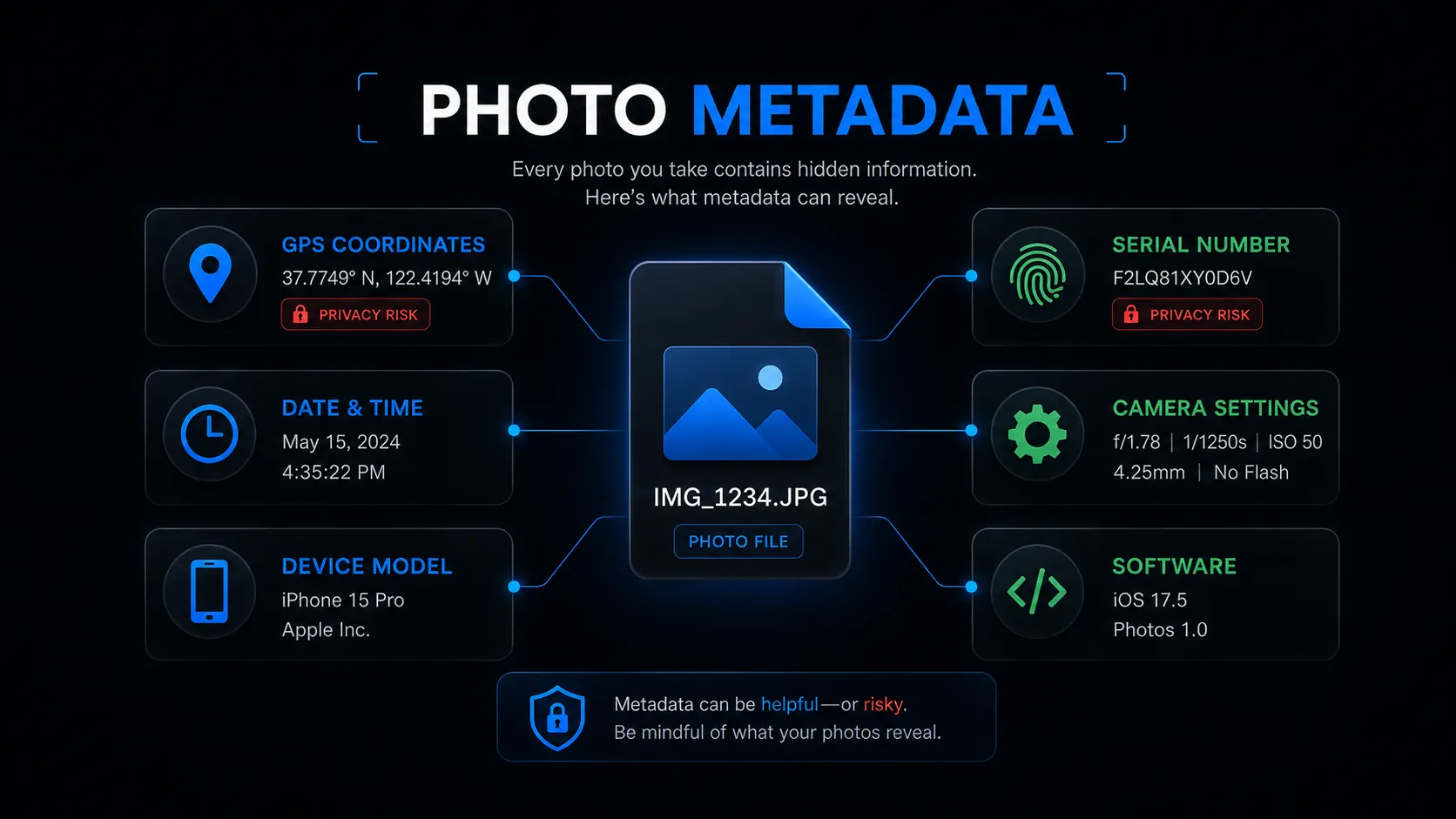
Every digital photo carries more information than what you see. Hidden inside the file is a layer of data called EXIF metadata, and it can include your exact GPS coordinates, the time you took the photo, your device model, and sometimes your camera's unique serial number. None of this is visible when you look at the image, but anyone with access to the file can extract it in seconds.
That matters because sharing a photo is sharing that data. In 2012, journalists from Vice published a photo of John McAfee while he was a fugitive in Guatemala. The EXIF data in that image contained GPS coordinates that revealed his location to authorities. The same year, the FBI arrested a hacker known as "w0rmer" after a taunting photo posted online contained iPhone GPS coordinates pointing to a residential address. Researchers have also demonstrated that EXIF data from images on the dark web can be used to unmask anonymous sellers by identifying the locations where product photos were taken.
These are extreme cases, but the underlying problem is ordinary. If you email a photo taken at your home, share it through a cloud storage link, post it on a forum, or send it as a document on WhatsApp, the GPS coordinates travel with the file. Your home address, your workplace, and your daily patterns can all be extracted from files that look like harmless pictures.
This guide explains what EXIF data actually contains, which platforms strip it and which do not, and how to remove it yourself on every major device before sharing.
What EXIF data is actually stored in your photos
EXIF stands for Exchangeable Image File Format. It is a metadata standard that cameras and smartphones write automatically into image files at the moment of capture. The data sits inside the file, invisible to viewers but readable by any metadata tool.
A typical smartphone photo can contain:
- GPS coordinates — latitude, longitude, and sometimes altitude, often accurate to within 3–5 meters under clear sky conditions
- Date and time — the precise moment the photo was captured, including timezone information in some devices
- Device information — manufacturer, model name, and firmware version of the phone or camera
- Camera serial number — a unique identifier that can link multiple photos to the same physical device, even across platforms
- Technical settings — shutter speed, aperture, ISO, focal length, flash status, white balance, and metering mode
- Software information — which app or editing tool last processed the image
- Orientation — how the device was held when the photo was taken
- Thumbnail — a small embedded preview that may retain original data even if the main image has been edited or cropped
Not every photo contains every field. Screenshots, for example, contain no GPS data because they capture the screen rather than the camera sensor. Photos taken with location services disabled will have no GPS coordinates. But if location services were enabled on the camera when you took the picture, the coordinates are almost certainly embedded.
If you want to see exactly what metadata a specific image contains before deciding what to remove, you can inspect it using the free Metadata Viewer, which reads EXIF, GPS, IPTC, XMP, and raw JSON fields directly in the browser without uploading the file to any server.
Why this matters for privacy
GPS coordinates are the most sensitive field. A photo taken at your home reveals your home address to within a few meters. A series of photos taken over several days — at your home in the morning, your office during the day, a gym in the evening — can reconstruct your daily routine.
Camera serial numbers create a different kind of risk. The combination of device model and serial number acts as a unique fingerprint. If you post photos anonymously on two different platforms using the same phone, someone who checks the EXIF data on both images can link them to the same device.
Timestamps alone can confirm when and where you were at a specific moment. In some legal, insurance, and workplace contexts, that information has real consequences.
The social media assumption
Many people assume that posting on Instagram, Facebook, or X automatically protects them because these platforms strip EXIF data during the upload process. That is partially true — those platforms do remove most metadata from publicly visible images. But platform behavior is not consistent across all sharing methods, and it should not be your only line of defense.
WhatsApp strips metadata when you send a photo in standard photo mode, but preserves the entire original file — including GPS coordinates — when you send the same photo as a document. Telegram follows the same pattern: standard sends strip metadata, but sending as a file preserves everything. Email attachments through Gmail and Outlook send the original file with full metadata intact. Cloud storage sharing links through Google Drive, Dropbox, and iCloud share the original file. Forums, marketplaces, and classified ad platforms rarely process uploads through metadata-stripping pipelines.
The reliable approach is to strip the metadata yourself before sharing, regardless of what any platform claims to do. Policies change, edge cases exist, and the consequences of a metadata leak from a single oversight can be permanent.
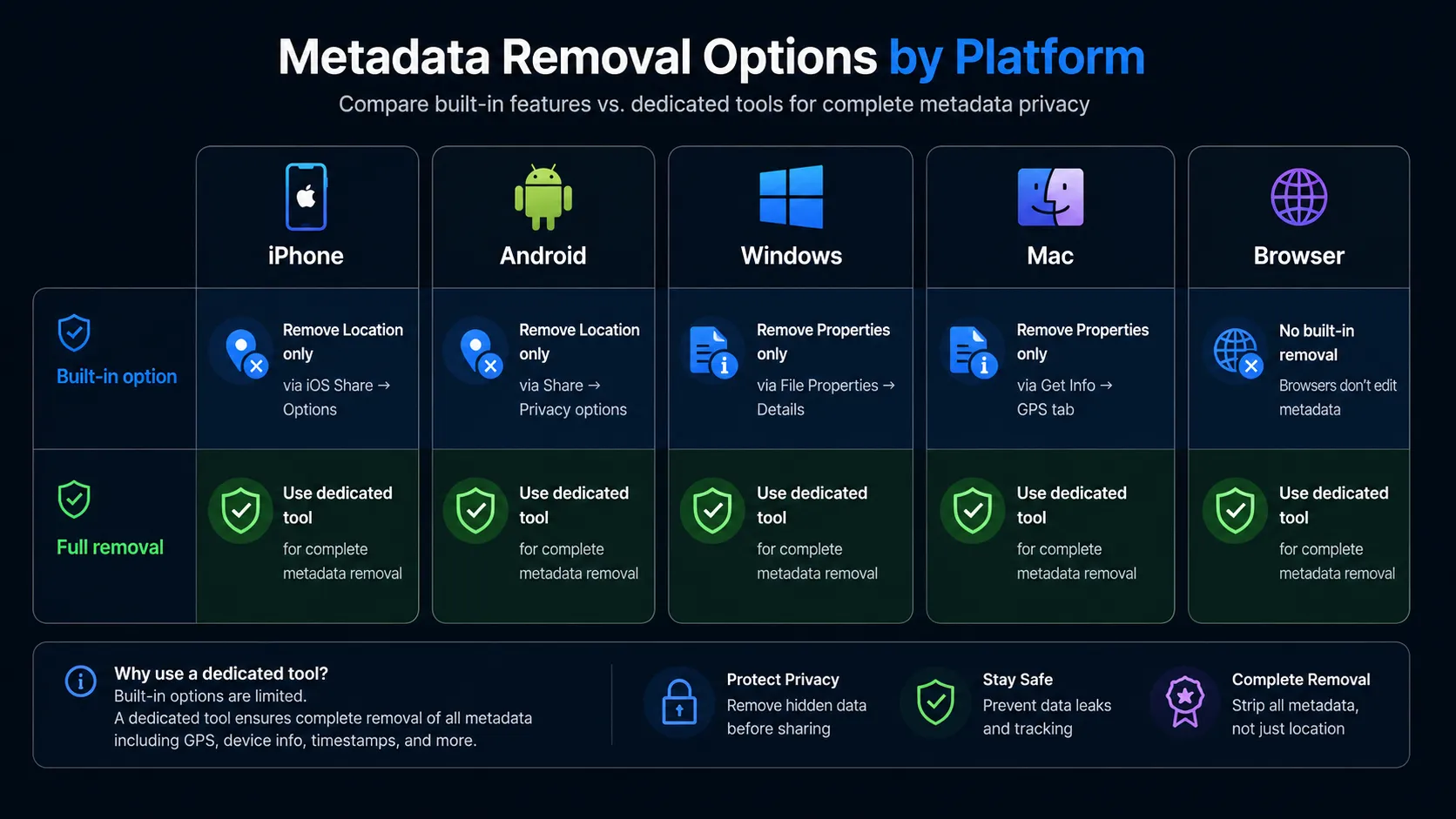 Comparison of EXIF metadata removal methods on iPhone, Android, Windows, Mac, and browser showing built-in options versus dedicated tools for each platform
How to remove EXIF data on every platform
On iPhone
Apple provides a built-in option for removing location data when sharing. Open the Photos app, select the photo, tap the Share button, and then tap Options at the top of the share sheet. In the Include section, toggle Location to off. The shared copy will not contain GPS coordinates.
This method removes GPS data but leaves other metadata intact — camera model, timestamps, and technical settings still travel with the file. For a complete strip of all EXIF fields, you need a dedicated removal tool.
To prevent GPS data from being recorded in future photos, go to Settings → Privacy & Security → Location Services → Camera → and set the permission to Never.
On Android
Google Photos lets you remove location data from individual photos. Open the image, swipe up or tap the menu to view details, tap the edit icon next to the location, and select Remove location. This strips GPS coordinates from the file.
For a full metadata wipe, third-party apps like Scrambled Exif integrate with the Android share menu, cleaning metadata before the photo reaches any other app.
To stop recording GPS in future photos, open your Camera app settings and toggle off Save Location, Location Tags, or GPS Tag — the exact wording varies by manufacturer. You can also revoke location permission for the Camera app entirely through Settings → Apps → Camera → Permissions → Location.
On Windows
Windows provides a built-in metadata removal option through File Explorer. Right-click the image file, select Properties, go to the Details tab, and click Remove Properties and Personal Information at the bottom. Windows offers two choices: create a clean copy with all possible properties removed, or select specific fields to remove from the original file.
This method handles basic removal well and works for individual files or small batches. It may not catch every field in complex formats like HEIC or files with extensive XMP data. For thorough cleaning across many files, dedicated tools are more reliable.
On Mac
macOS does not provide a one-click metadata removal tool comparable to the Windows approach. The most thorough option for Mac users is ExifTool, a command-line utility created by Phil Harvey and widely considered the industry standard for metadata operations.
To strip all metadata from a file using Terminal:
exiftool -all= photo.jpg
This removes every EXIF, IPTC, and XMP field from the image. By default, ExifTool creates a backup copy of the original file. To suppress the backup and overwrite directly:
exiftool -all= -overwrite_original photo.jpg
For users who prefer a graphical interface, ExifCleaner is a free, open-source desktop app for macOS that strips metadata through drag-and-drop.
In the browser — no installation needed
If you want to remove EXIF data without installing anything, browser-based tools work on any device with a web browser — including phones, tablets, Chromebooks, and shared computers.
The free EXIF Remover processes images entirely in your browser. The file never leaves your device, which matters because uploading a photo to a remote server for metadata removal means sending the exact data you are trying to protect to a third party. You can selectively choose what to remove: GPS coordinates only, camera information, timestamps, all EXIF data, or everything except copyright and creator fields. This selective approach is especially important for photographers and publishers who need to strip location data but keep attribution metadata intact.
After removing metadata, verify the result. Check the cleaned file using the Metadata Viewer to confirm that the fields you wanted removed are actually gone. Some tools and formats can leave residual data behind, particularly in HEIC and TIFF files.
Full removal versus selective removal
Not every situation calls for stripping all metadata. The right approach depends on why you are sharing and what risks the metadata creates.
When to remove everything
Strip all metadata when you are posting photos on public forums, marketplaces, or classified ads where strangers can download your files. The same applies to dating profiles, anonymous accounts, and any context where traceability back to your device or location creates a risk.
When to use selective removal
Photographers and publishers often need to remove GPS coordinates, timestamps, and device identifiers while keeping IPTC and XMP fields for creator name, copyright notice, credit line, and licensing terms. Stripping everything means losing attribution the moment someone downloads the image.
Businesses may want to strip client-location metadata from project documentation while preserving internal tags, copyright, and descriptive fields.
Journalists may need to remove source-location data for safety while keeping timestamps for verification and editorial workflow.
The EXIF Remover supports this kind of selective removal — stripping GPS, camera info, and timestamps while preserving rights and attribution fields. If you need to change metadata values rather than delete them — correcting GPS coordinates, adding copyright, or updating descriptions — the Metadata Editor handles that workflow.
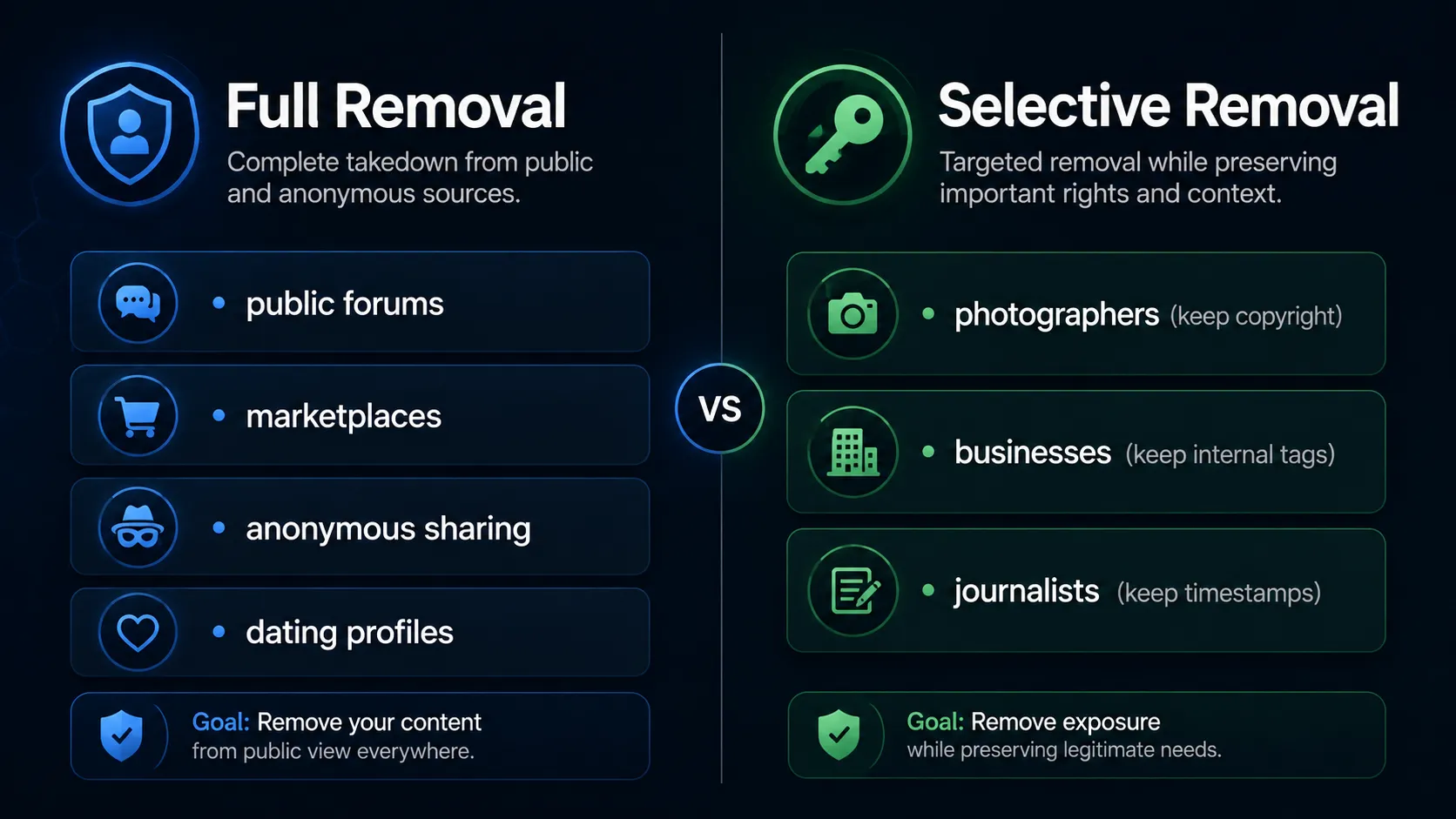 Visual guide showing when to remove all photo metadata for privacy versus when to selectively keep copyright and creator fields for attribution and legal purposes
When metadata should be kept, not removed
Metadata is not always the enemy. There are practical situations where keeping it — or even adding more of it — serves your interests better than stripping it.
For photographers, IPTC fields for creator, copyright, and licensing terms help protect intellectual property and support proper attribution when images are reused. Google Images can display IPTC photo metadata including creator name, credit line, and copyright notice.
For local businesses, photos tied to public locations — storefronts, completed projects, service areas — can benefit from having GPS and descriptive metadata for internal organization and content workflows. The risk is low when the location is already publicly known.
For legal, insurance, and compliance documentation, timestamps and GPS coordinates can serve as evidence. Removing metadata from these files could undermine their value in disputes or audits.
For teams managing image libraries across multiple locations, embedded metadata makes sorting, searching, and organizing assets much more practical. If you want a workflow that covers metadata inspection, geotagging, AI-generated descriptions, and image optimization together, GeoImageTagger combines those capabilities in one platform. You can explore the full process on How It Works and review available tools on the Tools Hub.
Frequently asked questions
What exactly is EXIF data?
EXIF stands for Exchangeable Image File Format. It is a metadata standard that cameras and smartphones write automatically into photos at the time of capture. It can include GPS coordinates, timestamps, device model, camera settings, and sometimes a unique camera serial number. This data is invisible when viewing the image but can be extracted by anyone with access to the original file.
Can someone really find my home address from a photo?
Yes, if the photo contains GPS metadata and was shared through a channel that preserves it. Email attachments, cloud storage links, forum uploads, and document-mode sends in WhatsApp and Telegram all preserve the original file with full metadata. Social media platforms like Instagram and Facebook strip GPS data from public uploads, but that does not cover every sharing method.
Does WhatsApp remove location data from photos?
It depends on how you send the photo. Standard photo sharing in WhatsApp strips EXIF metadata including GPS coordinates. But sending the same photo as a document preserves the entire original file with all metadata intact. Telegram follows the same pattern — standard sends strip metadata, file sends preserve everything.
Does Instagram strip EXIF metadata?
Yes. Instagram removes EXIF data from uploaded photos, including GPS coordinates, camera information, and timestamps. The location tag visible on Instagram posts comes from the user manually selecting a place in the app, not from embedded GPS metadata in the image file.
Do screenshots contain EXIF data?
Screenshots capture what is on the screen, not what the camera sensor records. They typically include the date, time, and device model of the device that took the screenshot, but they do not contain the original photo's GPS coordinates or camera EXIF data.
Can I remove GPS data but keep copyright information?
Yes. Selective removal lets you strip GPS coordinates, timestamps, and camera identifiers while preserving IPTC and XMP fields like creator name, copyright notice, and usage rights. This is important for photographers and publishers who need privacy cleanup without losing attribution.
How do I verify that metadata was actually removed?
After cleaning a photo, check the output file using a metadata viewer that shows all remaining fields. If GPS coordinates, timestamps, or device identifiers still appear, the removal was incomplete. Always verify before sharing sensitive files, because some tools and formats can leave residual data behind.
Is it safe to use online EXIF removers?
That depends on whether the tool processes files locally in your browser or uploads them to a remote server. Browser-based tools where the file never leaves your device are safe. Tools that upload your photo to a server introduce a risk — you are sending the exact data you want to protect to a third party. Always check how a tool processes files before using it.
Conclusion
EXIF data in your photos is useful for organization, copyright protection, and workflow management. It becomes a privacy risk the moment you share files without knowing what they contain. GPS coordinates can reveal your home address. Timestamps can map your routine. Camera serial numbers can link anonymous posts back to your device.
The fix is straightforward. Check what metadata your photos carry. Remove what you do not want shared. Keep what serves your interests. And verify that the removal actually worked before the file leaves your hands. Whether you do this on your phone, your computer, or in a browser, the process takes seconds and eliminates a risk that most people never think about until it is too late.
← Back to Blog